A page can appear in Google hundreds of times and still attract very few visitors. Another page may bring steady clicks but have indexing or technical issues that limit its growth. Google Search Console analysis helps you understand what is happening between a search and a visit, so you can make decisions based on evidence rather than guesswork.
This guide explains how to read the key reports, find high-value opportunities, investigate traffic changes, and build a repeatable analysis routine. It is useful for business owners, in-house marketers, freelancers, and SEO teams working on sites of any size.
In this guide
- What Google Search Console analysis covers
- Set up the right property and baseline
- Understand clicks, impressions, CTR, and position
- Analyze queries and search intent
- Find page-level SEO opportunities
- Segment by country, device, and search type
- Audit indexing and technical issues
- Investigate traffic drops and sudden changes
- Build a practical analysis workflow
- Common analysis mistakes
- Conclusion and action plan
- Frequently asked questions
What Does Google Search Console Analysis Cover?
Google Search Console (GSC) is Google’s free service for monitoring how a website performs in Google Search and identifying issues that may affect its visibility. It reports how people discover your pages, which queries trigger your results, and whether Google can crawl and index your content.
Analysis means connecting those reports to business questions. You are not simply checking whether clicks went up. You are asking which pages attract qualified searchers, which queries reveal unmet intent, and what technical problems could prevent important URLs from appearing.
The main areas to review
- Search performance: clicks, impressions, click-through rate (CTR), average position, queries, and pages.
- Indexing: which URLs Google has indexed, which are excluded, and the reasons reported.
- Experience and enhancements: available Core Web Vitals, HTTPS, and eligible rich-result reports.
- Links: internal and external links reported for your property.
- Manual actions and security: notifications about certain policy or security problems.
GSC is not a complete analytics platform. It does not tell you everything a visitor does after arriving on your website, and it does not provide a full picture of revenue or lead quality. Pair it with an analytics platform such as Google Analytics or your CRM when you need to connect organic search activity to conversions.
Set Up the Right Property and Establish a Baseline
Before interpreting a report, confirm that you are looking at the correct website property. A Domain property covers all subdomains and protocols for the domain, while a URL-prefix property covers only URLs under the exact prefix you enter. A mismatch can make your data look incomplete.
Choose a useful property
For most site owners, a Domain property is a practical way to monitor the domain across HTTP, HTTPS, and subdomains. Verification requires a DNS record. A URL-prefix property can be useful when you need to isolate a particular protocol, subdomain, or directory.
Open Google Search Console, add the property, and complete the verification method shown. Then submit your XML sitemap if you have one. A sitemap helps Google discover URLs, but submitting it does not guarantee indexing.
Create a baseline before making changes
Choose a representative date range and record total clicks, impressions, CTR, and average position. Also export the leading queries and pages. A baseline gives you something meaningful to compare after content updates, migrations, technical fixes, or campaigns.
Search Console data is not always instant. Recent dates can be incomplete or preliminary, and reporting can change as data is processed. For important decisions, avoid treating the newest day as a final result.
Understand the Four Core Performance Metrics
The Search results Performance report gives you four central metrics. Each answers a different question, and none should be interpreted in isolation.
| Metric | What it tells you | Useful question |
|---|---|---|
| Clicks | How often users clicked a result leading to your site. | Are searchers visiting the site? |
| Impressions | How often a result from your property was shown under Google’s impression rules. | Is search visibility growing? |
| CTR | Clicks divided by impressions, expressed as a percentage. | Are impressions turning into visits? |
| Average position | The average position of the topmost result from your property for the relevant impressions. | How is visibility trending across searches? |
Clicks: measure visits from Google Search
Clicks are the most direct indication that a search result persuaded someone to visit. Review clicks by page and query, not only at site level. A site-wide increase can hide a decline in a high-value service page, while one new article may account for most of the growth.
Impressions: measure search exposure
Impressions can rise before clicks do. That may mean Google is showing a page for more queries, that the page is appearing in more locations, or that it is becoming visible at lower positions. More impressions are promising only when the queries are relevant to your audience.
CTR: evaluate how well results earn clicks
CTR is calculated as clicks divided by impressions. For example, 120 clicks from 4,000 impressions equals a 3% CTR. A lower CTR can point to a weak title, an unclear value proposition, a mismatch with search intent, or a result page where other features attract attention.
There is no universal CTR target that applies to every keyword. Position, query type, brand familiarity, device, country, and search-result layout all affect the rate. Compare similar queries and pages rather than treating one benchmark as a rule.
Average position: use it as a trend, not a verdict
Average position is an aggregate. A page ranking first for a small set of terms and twentieth for many others can produce an average that does not describe any single search. It can also vary by country, device, and query mix.
How to Analyze Queries and Search Intent
The Queries tab shows search terms that generated impressions for your property. It can reveal what people actually search for, including wording and topics you may not have planned for. Start by sorting the table by impressions, clicks, and CTR, then inspect groups of related queries.
Find relevant queries with high impressions and few clicks
These queries may represent an opportunity, but first check whether they fit the page and your business. A query with many impressions and low clicks could indicate a weak snippet. It could also mean the page appears for a broad or loosely related term that does not match its content.
For example, a small accounting firm may discover impressions for “small business tax checklist” even though its page primarily promotes bookkeeping services. The query may justify a useful supporting guide, but it does not automatically mean the firm should rewrite its service page around that phrase.
Group queries by intent
| Intent group | Example query | Likely content response |
|---|---|---|
| Informational | how to audit website SEO | Step-by-step guide or checklist |
| Commercial investigation | best SEO audit tools | Comparison with criteria and trade-offs |
| Transactional | hire SEO consultant | Service page with scope, proof, and contact path |
| Navigational | BrandUmark SEO tools | Clear brand or product destination |
Use the intent group to decide whether to improve an existing page, create a new resource, or leave the query alone. This is where GSC analysis connects with your wider SEO strategy.
Separate branded and non-branded searches
Branded queries include your company or product name. Non-branded queries describe a need, topic, or service without naming your brand. Both matter, but they tell different stories. Branded growth may reflect awareness, while non-branded visibility can show whether new audiences are discovering you.
Search Console has introduced a branded and non-branded query filter for eligible properties. Availability can vary, and Google’s classification may not be perfect, so review borderline queries manually.
Use query-to-page analysis to detect cannibalization
Click a query, then open the Pages tab to see which URLs Google showed for it. If several pages alternate for the same intent, check whether they serve distinct needs or compete for the same topic. Multiple URLs are not automatically a problem. The concern is when they split relevance, links, and user attention without a clear purpose.
Find Page-Level SEO Opportunities
The Pages tab helps you identify which URLs attract search exposure and clicks. Sort by impressions to find pages with broad visibility, by clicks to find traffic drivers, and by CTR to identify pages that may need a stronger search snippet.
Prioritize pages using a simple opportunity matrix
| GSC pattern | What to investigate | Possible next action |
|---|---|---|
| High impressions, low CTR | Title, description, intent, competing SERP features | Test a clearer title and stronger page promise |
| Good CTR, low impressions | Topic demand, query coverage, authority, indexing | Expand relevant coverage and strengthen internal links |
| High clicks, falling trend | Seasonality, competitors, technical changes, query mix | Compare periods and inspect affected queries |
| Low impressions, high business value | Indexing, internal links, content depth, page targeting | Check indexability and improve the page’s relevance |
Improve a page without changing everything at once
Open the page and compare its leading queries with the page title, H1, introduction, headings, and main offer. Does the content answer the question behind those searches? Is the important information easy to find? Does the page give users a logical next step?
Make focused changes. Improve a title when the promise is unclear, add missing sections when the query reveals a genuine content gap, and improve internal links when a valuable page is difficult to discover. A broader SEO analysis can help you check whether the issue is limited to one URL or part of a site-wide pattern.
Look for pages that deserve a refresh
Pages with stable impressions but declining clicks deserve investigation. Check whether the search intent has shifted, competitors offer more complete answers, or your title no longer reflects the page. For older guides, verify examples, screenshots, dates, product features, and outbound references before republishing.
Segment by Country, Device, and Search Type
Site-wide averages hide differences between audiences. Use the Country and Devices tabs, then compare segments to understand where performance changes originate.
Country analysis
A company serving the United States, United Kingdom, Canada, and Australia should not assume that all markets behave alike. Compare clicks, impressions, and queries by country. Look for relevant differences in spelling, terminology, regulations, currency, and search intent before deciding whether a dedicated regional page is justified.
For a South Asian business targeting overseas clients, country filters can reveal whether impressions are coming from the intended market or mainly from local searches. That insight can guide content examples, service-page wording, and market priorities. Do not create near-duplicate country pages just because the report shows several countries.
Device analysis
Compare mobile and desktop performance. A mobile CTR gap may reflect different result layouts or query behavior, while a conversion gap may require analytics data to diagnose. If mobile impressions are strong but engagement is weak, test the actual mobile page for readability, speed, navigation, and intrusive elements.
Search type and search appearance
Search type lets you separate Web, Image, Video, and News performance where applicable. A product business may care about image search, while a publisher may monitor News and Discover reports. Search appearance filters can help isolate eligible rich-result formats and other result types.
Audit Indexing and Technical Issues
Strong content cannot attract organic clicks if Google does not index the relevant URL. The Page indexing report groups URLs by indexing status and provides examples of affected pages. Treat each status as a clue to investigate, not as an instruction to force every URL into the index.
Review the Page indexing report
Start with important URLs that are not indexed. Check whether exclusion is intentional. Search filters, duplicate URLs, redirected pages, and thin utility pages may not need to appear in Google. For a valuable article or service page, investigate the reason and confirm that the page is accessible, canonicalized correctly, and eligible for indexing.
Use URL Inspection for individual pages
The URL Inspection tool shows information about Google’s indexed version of a URL and can run a live test of the page. Use it to check the last crawl, indexing status, selected canonical, and detected enhancements where available. A live test can help identify current access problems, but it does not guarantee that Google will index the page.
Check common technical signals
- Robots directives: confirm that robots.txt is not blocking crawling and that no unintended noindex directive is present.
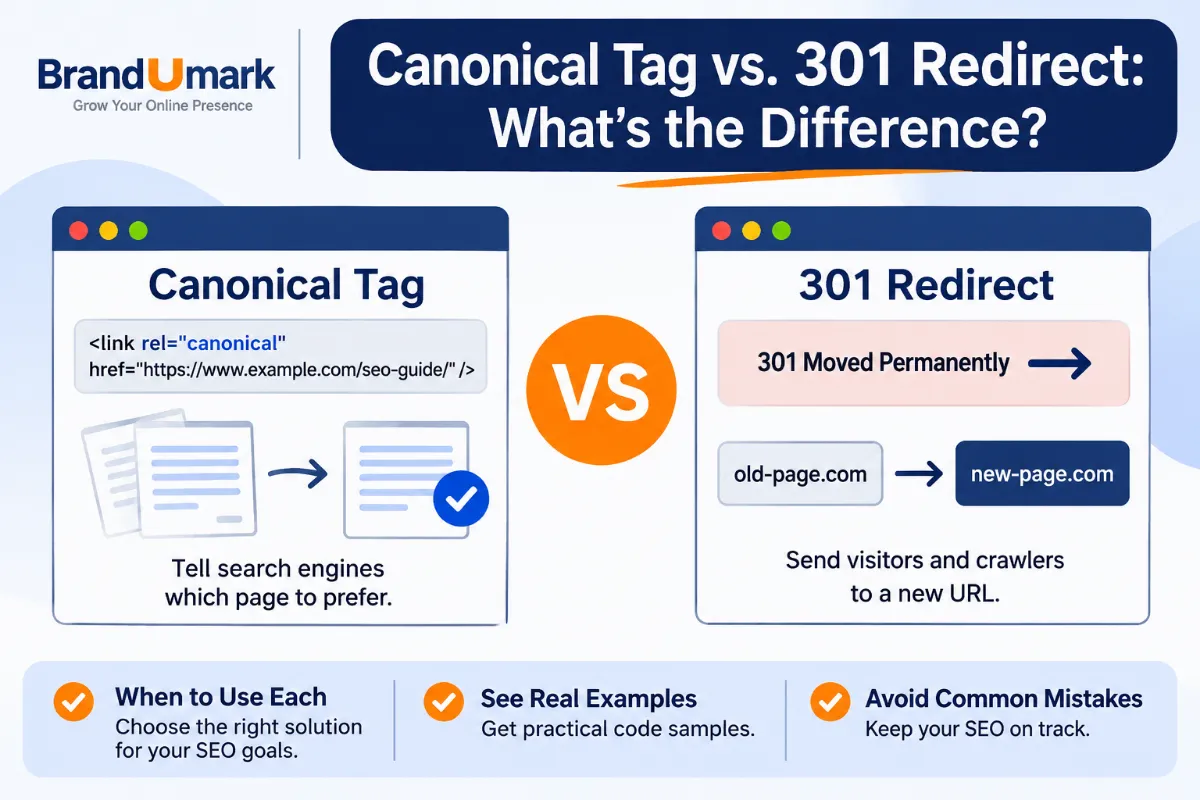
- Canonical tags: ensure the preferred URL is consistent with redirects, internal links, and sitemap entries.
- Redirects: check that moved pages resolve to the most relevant destination and avoid unnecessary chains.
- Internal links: link important pages from relevant, crawlable pages using descriptive anchor text.
- Sitemaps: include canonical, indexable URLs and keep the file updated.
- Server and rendering: investigate persistent server errors, blocked resources, and content that fails to render.
Use Google’s SEO Starter Guide for foundational guidance. If you need to create or review a sitemap, BrandUmark also provides a sitemap generator.
How to Investigate Traffic Drops and Sudden Changes
A decline in clicks is a symptom, not a diagnosis. Avoid changing titles, publishing new content, or disavowing links before you know what changed. First establish whether the drop is real, where it happened, and which searches or pages account for it.
A step-by-step diagnosis
- Confirm the date range. Compare equivalent complete periods and account for weekends, holidays, and seasonality.
- Check search type. Make sure you are comparing Web with Web, not mixing different search surfaces.
- Find the affected segment. Compare pages, queries, countries, devices, and search appearances.
- Check indexing and technical reports. Look for new exclusions, server errors, manual actions, or security issues.
- Review the affected URLs. Inspect recent edits, redirects, canonical tags, templates, and internal links.
- Compare the search results. Check whether competitors, intent, or result features changed for the affected queries.
- Annotate the timeline. Record content releases, migrations, redesigns, and major technical changes alongside the performance trend.
Google’s guidance on debugging drops in Google Search traffic is a useful companion when a decline is substantial or difficult to explain.
Separate site-wide declines from page-specific losses
If most pages decline together, investigate broad causes such as tracking scope, site availability, robots directives, a migration, or a major change in search demand. If only a few URLs fall, focus on those pages and the queries they lost. This distinction saves time and prevents unnecessary site-wide edits.
Measure changes carefully
Record the date and scope of every meaningful update. Compare the period after the change with a comparable baseline, but remember that correlation does not prove causation. Competitor changes, demand shifts, and search-system updates can happen at the same time.
A Repeatable Google Search Console Analysis Workflow
A useful GSC routine should produce a short list of actions, not an endless spreadsheet. The following workflow works for a small business site or a larger content programme. Adjust the frequency to the site’s publishing pace and traffic volume.
Weekly checks
- Review major click and impression changes.
- Check newly published or updated URLs for discovery and indexing issues.
- Inspect unusual losses on high-value pages.
- Record urgent technical issues and assign an owner.
Monthly checks
- Compare the last complete month with the previous month and, where useful, the same month last year.
- Identify query groups with growing impressions and weak CTR.
- Review the pages gaining or losing clicks and connect them to business priorities.
- Compare countries and devices to spot audience or usability gaps.
- Choose a small number of improvements and document the expected outcome.
Quarterly checks
Review the site’s content coverage, technical health, and search strategy. Identify pages that overlap, outdated content that needs a refresh, and topics where search demand is visible but the site lacks a useful answer. For a broader toolkit, see BrandUmark’s guides to SEO marketing tools and SEO tools for small businesses.
Turn observations into a prioritized backlog
Score each opportunity using three practical factors: potential impact, confidence in the diagnosis, and effort required. A page with a clear intent mismatch and substantial impressions may deserve attention before a low-traffic URL with a minor metadata issue. This is a prioritization framework, not a Google ranking formula.
Common Google Search Console Analysis Mistakes
- Judging success by average position alone. Position is an aggregate and does not reveal conversion quality or the full query mix.
- Comparing mismatched periods. Partial dates and seasonal differences can create misleading conclusions.
- Assuming every excluded URL is an error. Some URLs should not be indexed, including duplicates and redirected pages.
- Chasing irrelevant impressions. Visibility for queries unrelated to your offer may not help the business.
- Rewriting titles based on one low CTR figure. Check query intent, position, device, country, and result features first.
- Expecting every query to appear. Privacy protections and reporting limits mean some queries are omitted or truncated.
- Confusing GSC clicks with analytics sessions. The systems use different measurement methods, scopes, and processing rules.
- Making many changes at once. Large batches of edits make it harder to identify which change contributed to an outcome.
Search Console is a decision-support tool. It is strongest when its evidence is combined with page reviews, technical checks, customer feedback, and conversion data.
Conclusion: Make Google Search Console Analysis Actionable
Google Search Console analysis helps you understand how people find your website and where search visibility can improve. The most useful insights usually come from combining metrics, segments, and page-level context rather than reacting to one number.
Start with this action plan:
- Establish a baseline: save clicks, impressions, CTR, position, leading queries, and key pages for a comparable date range.
- Find one opportunity: choose a relevant page with high impressions and weak CTR, or a valuable page with declining clicks.
- Diagnose before editing: inspect query intent, country, device, indexing status, and competing results.
- Make a focused improvement: update the content, snippet, internal links, or technical setup that matches the evidence.
- Measure and document: review the same segment after a suitable period and record what changed.
Build this routine into your SEO process. Over time, it turns Search Console from a dashboard you occasionally check into a reliable source of decisions about content, technical priorities, and organic growth.
Frequently Asked Questions
1. What is Google Search Console analysis?
It is the process of reviewing Search Console reports to understand search visibility, clicks, queries, indexing, and technical signals. The goal is to identify useful SEO improvements and measure their impact.
2. How often should I analyze Google Search Console?
Check important changes weekly, review performance and opportunities monthly, and conduct a broader content and technical review quarterly. The right schedule depends on site size, traffic, and how often you publish or update pages.
3. What is a good CTR in Google Search Console?
There is no single CTR target for every website or query. CTR varies with position, intent, device, country, brand awareness, and the search-result layout, so compare similar pages and queries over time.
4. Why are clicks lower than impressions?
An impression means a result was shown under Google’s reporting rules, while a click means someone selected it. Most impressions do not become clicks, and the gap depends on ranking, relevance, result features, and the searcher’s needs.
5. Why does Search Console show queries but not all the searches I expect?
Some queries are anonymized to protect user privacy, and the report may limit the rows it displays. Query filters can also affect totals because anonymized queries are not included in filtered query results.
6. Does submitting a sitemap guarantee indexing?
No. A sitemap helps Google discover URLs, but it does not guarantee that those URLs will be crawled or indexed. Each page still needs to be accessible and meet Google’s indexing requirements.
7. What is the difference between Google Search Console and Google Analytics?
Search Console reports how your site performs in Google Search before the visit, including queries, impressions, clicks, and indexing. Analytics measures activity on your site after users arrive, such as engagement and conversions.
8. Can Google Search Console show why rankings dropped?
It can help narrow down where and when visibility changed, and it can reveal indexing or technical issues. It does not always identify the cause, so compare affected queries and pages with technical changes, seasonality, competitors, and search-result changes.